
Our mission
is to make a positive difference in the lives of our children, their families, and the communities we serve.
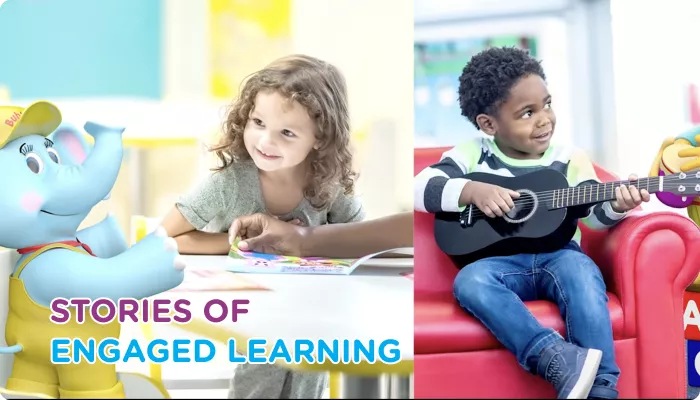


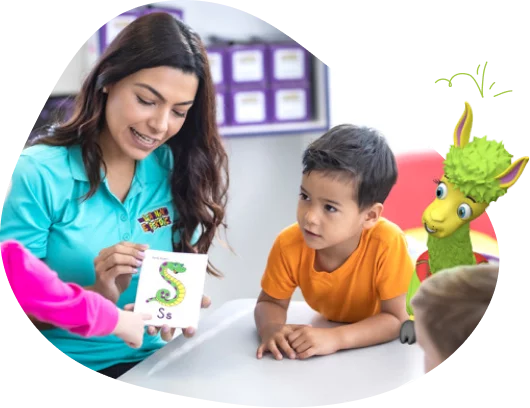
Curriculum that develops the whole child
Our L.E.A.P.® (Learning Experience Academic Program) Curriculum uses fun, hands-on activities throughout early education to help children develop intellectually, socially and cognitively, or, as we say, to Learn, Play and Grow.
Learn More About Our CurriculumCharacters that bring learning to life
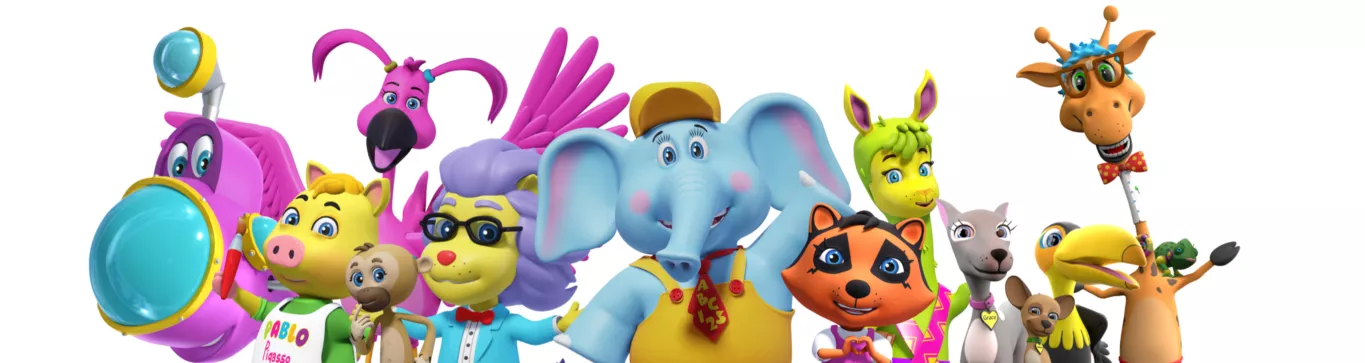
Children love learning from characters—and studies show that it’s highly effective, especially in preschool and early education. TLE® has a cast of unique, beloved characters, each one teaching children a new value or activity.
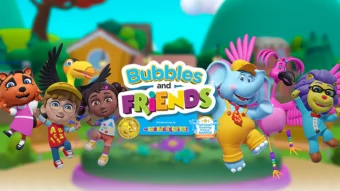
Bubbles and Friends Theme Song
261K subscribers and 60,480,577 views
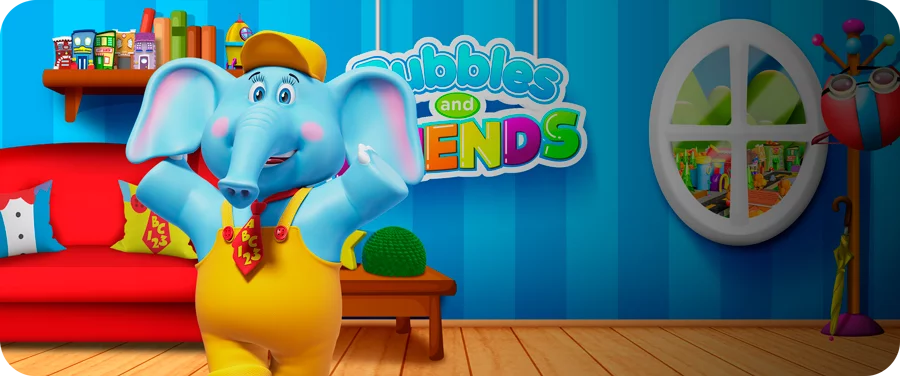
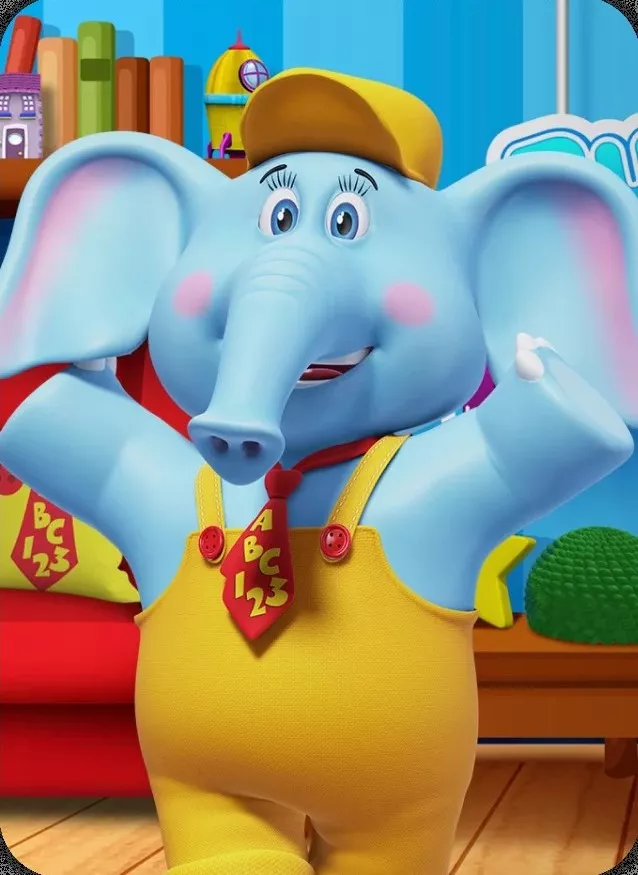
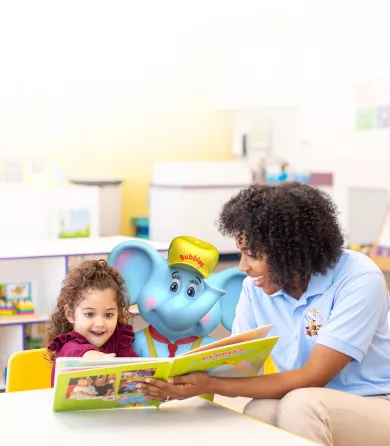
Bubbles
Our lovable friend who takes our little learners on a daily adventure and makes them happy to learn, play and grow.


Grace & Charity
Our dynamic doggy duo introduces the importance of being generous and giving.
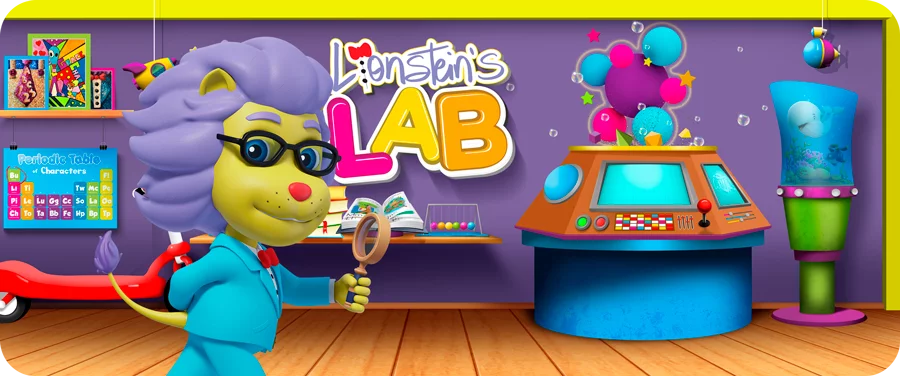
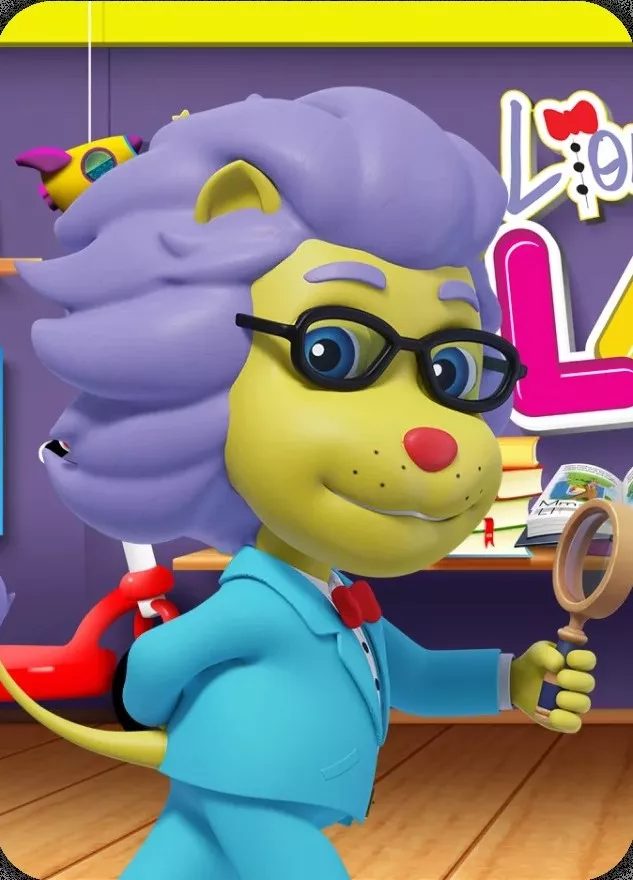
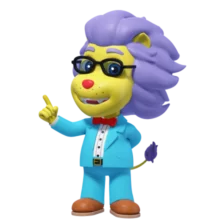
Lionstein®
Our wise and creative scientist who makes science fun and exciting.
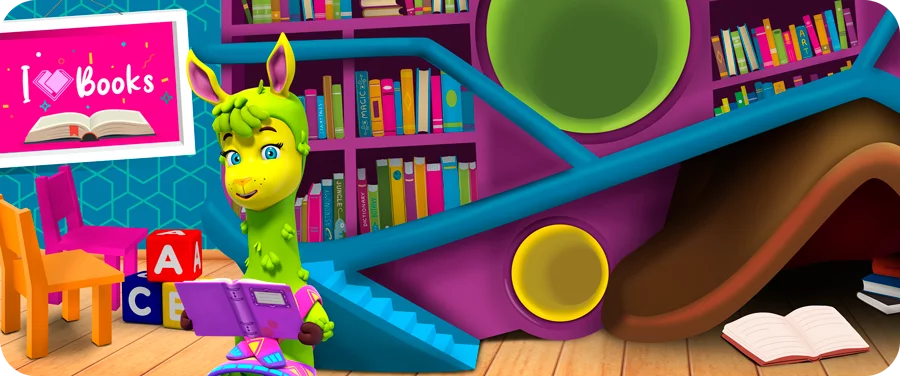
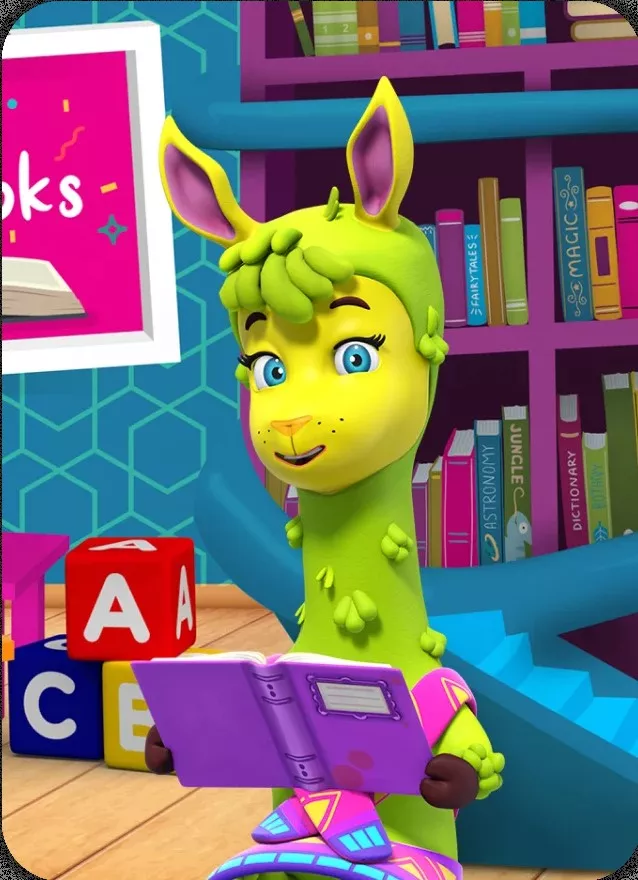
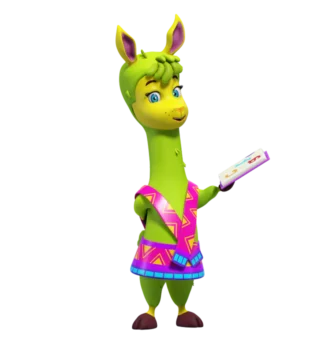
Phoebe
Our literature loving llama makes reading fun.
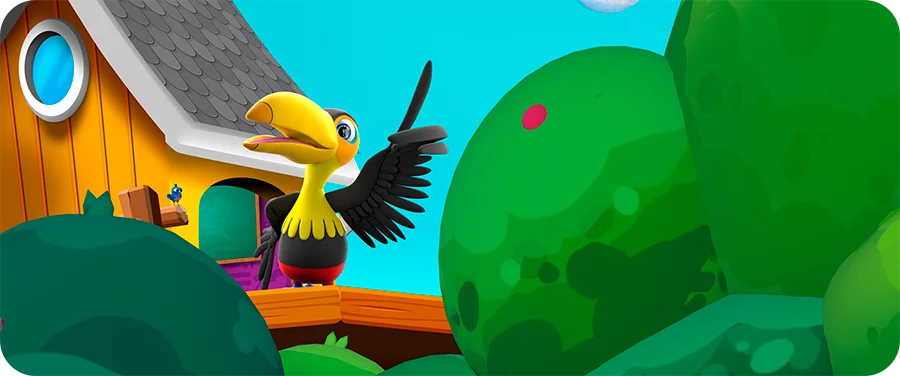
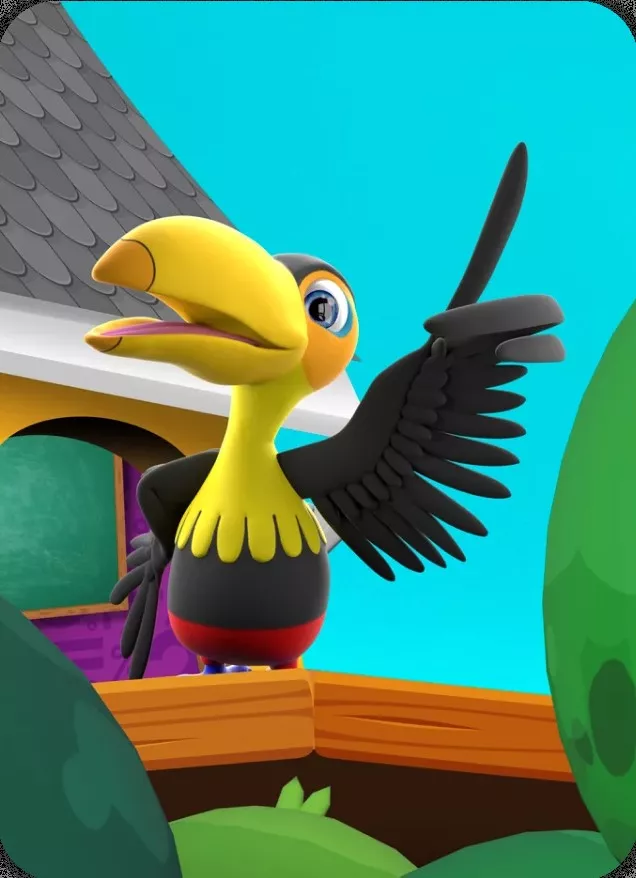
Two Plus Toucan
Our creative mathematician who helps little learners explore the joy of math.
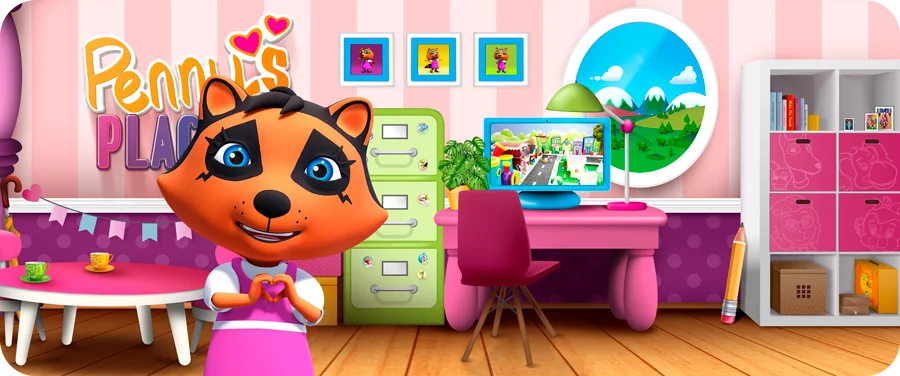
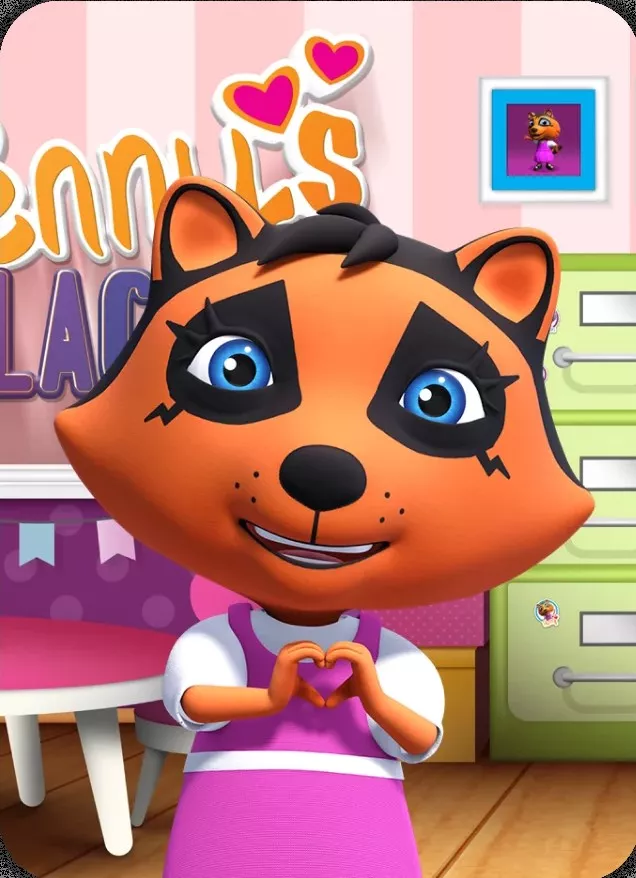
Penny
Our well-mannered etiquette coach demonstrates the importance of being helpful, honest, and kind.
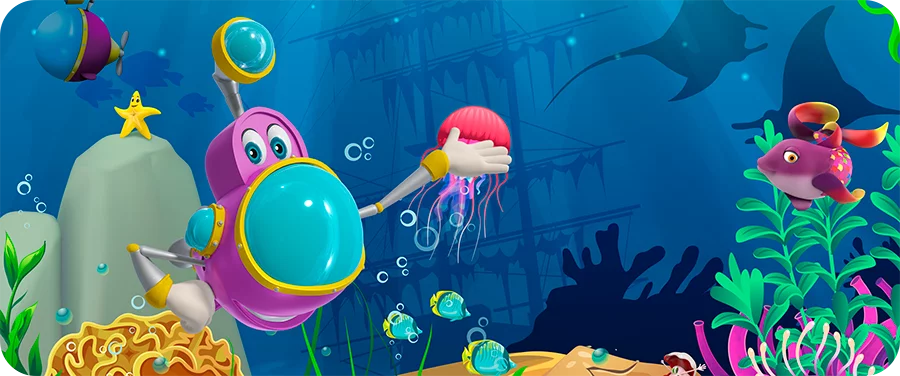
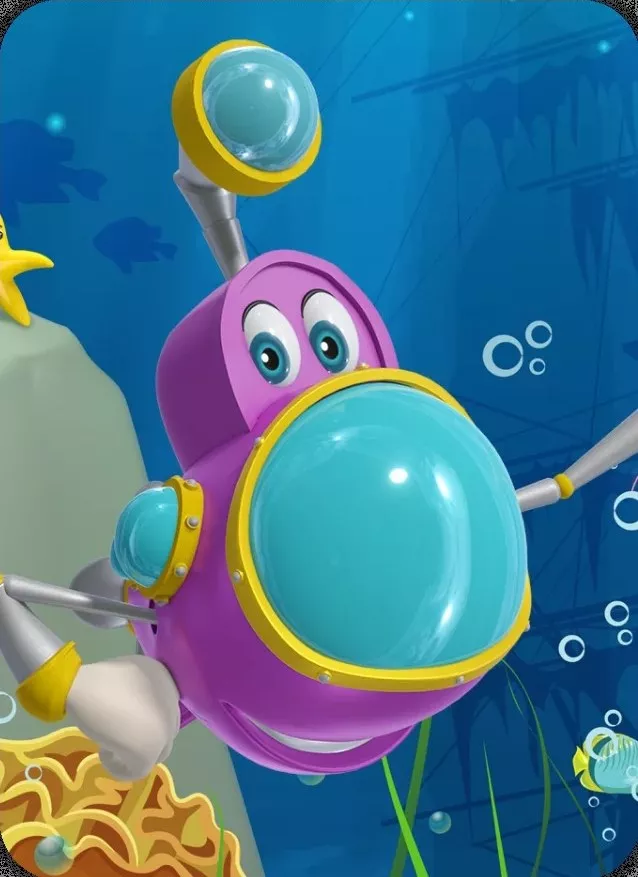
Sonar
Our adventurous submarine reveals the many wonders of the underwater world.
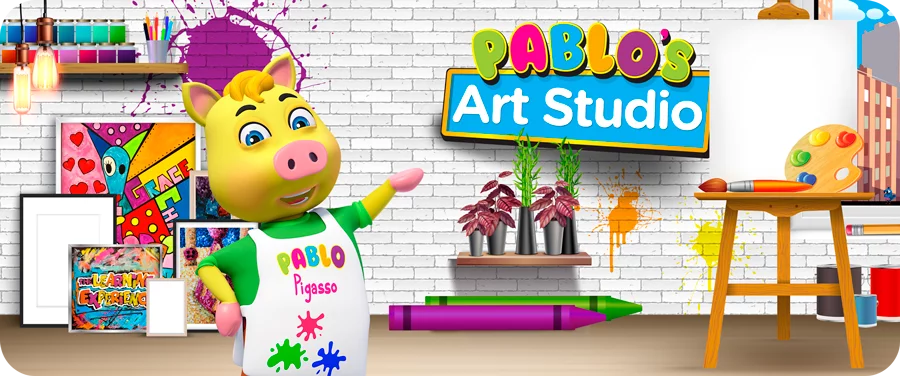
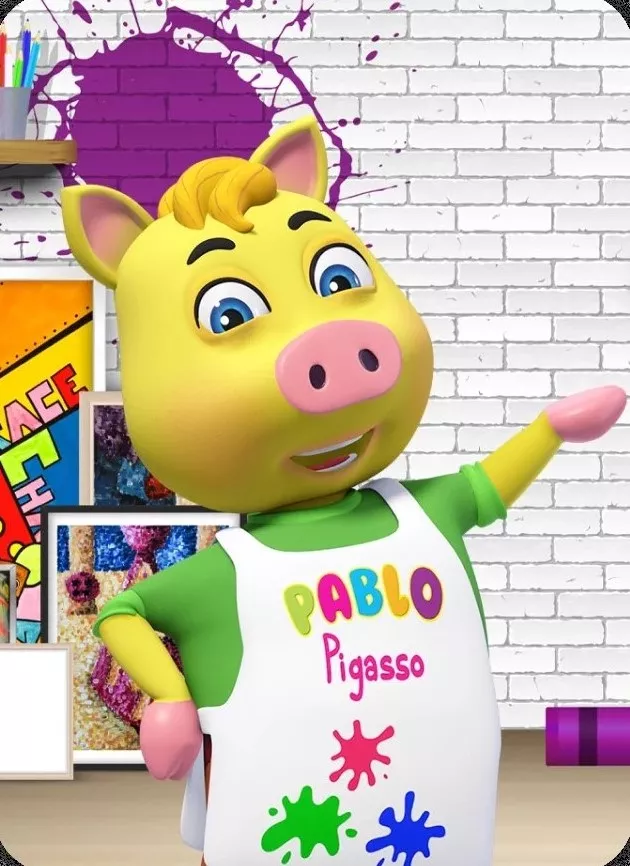
Pablo
Our creative and artsy pig helps children discover the beauty of self-expression.
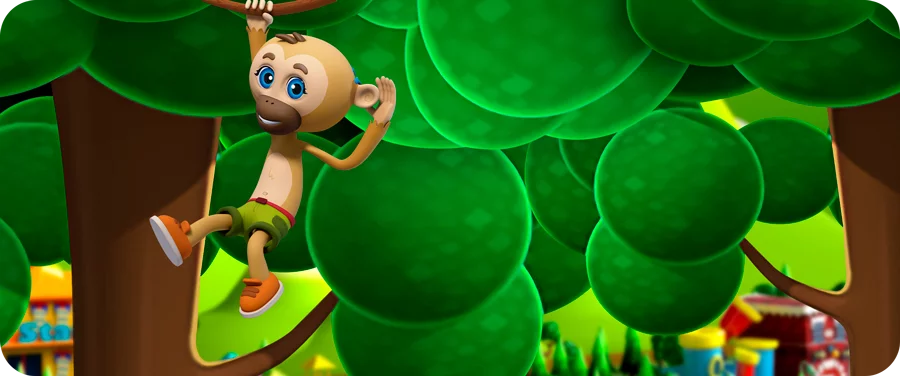

Gibby
Our kind-hearted, hard-of-hearing gibbon loves to share his passion for sign language and promoting inclusivity.


Success measured in happy stories
See what parents are saying about TLE Childcare Centers.



Amy Kirsner
Amy Kirsner
Our daughter has been at the Learning Experience for over two years and we could not be more pleased! She has fun, made some great friends, and has learned so much. She is beyond r... Read more
As seen on



Mariana Litrides
Mariana Litrides
Our son Archer was home with us for the first to years and we were a little worried about putting him in daycare because we didn’t think anyone else could care for him as we did.... Read more
As seen on

Peter K
Peter K
The best place for your child early development very well organized very informative about your child’s day. Easy to manage app gives me as a parent peace of mind of what’s goi... Read more
As seen on

Pamela Mejia de Rodriguez
Pamela Mejia de Rodriguez
We love the Learning Experience. Our son loves his teachers and all the activities that are included within the program like yoga and Spanish. The curriculum it’s amazing and the... Read more
As seen on

Luis Cartaya
Luis Cartaya
The TLE family is great! We love having our child there. The best is the app which provides us pictures every so often showing him eating, playing, or sleeping. It's almost like yo... Read more
As seen on

Heather Sprague
Heather Sprague
The Learning Experience hands down is the absolute best daycare / preschool in town. Our daughter has been attending this school for almost 3 years. The staff is amazing, they list... Read more
As seen on

Erica Gray
Erica Gray
My son has attended TLE for 2 months now and I have noticed a significant difference in his attitude when compared to the last daycare he attended. He no longer cries at drop off ... Read more
As seen on
Every detail designed with health and safety in mind
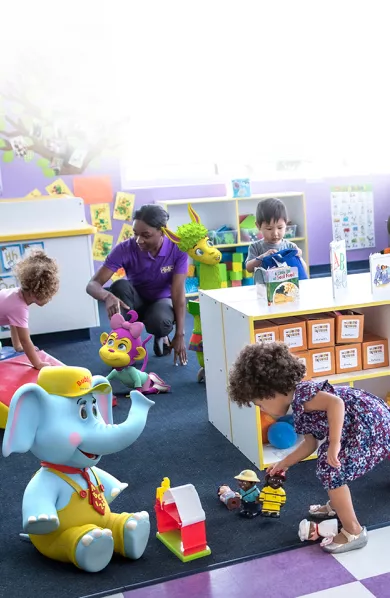
From the vibrant colors to the furniture and floor plan, TLE® Centers foster an early childhood care environment where children feel comfortable and where their curiosity and creativity are rewarded.
Explore Our Centers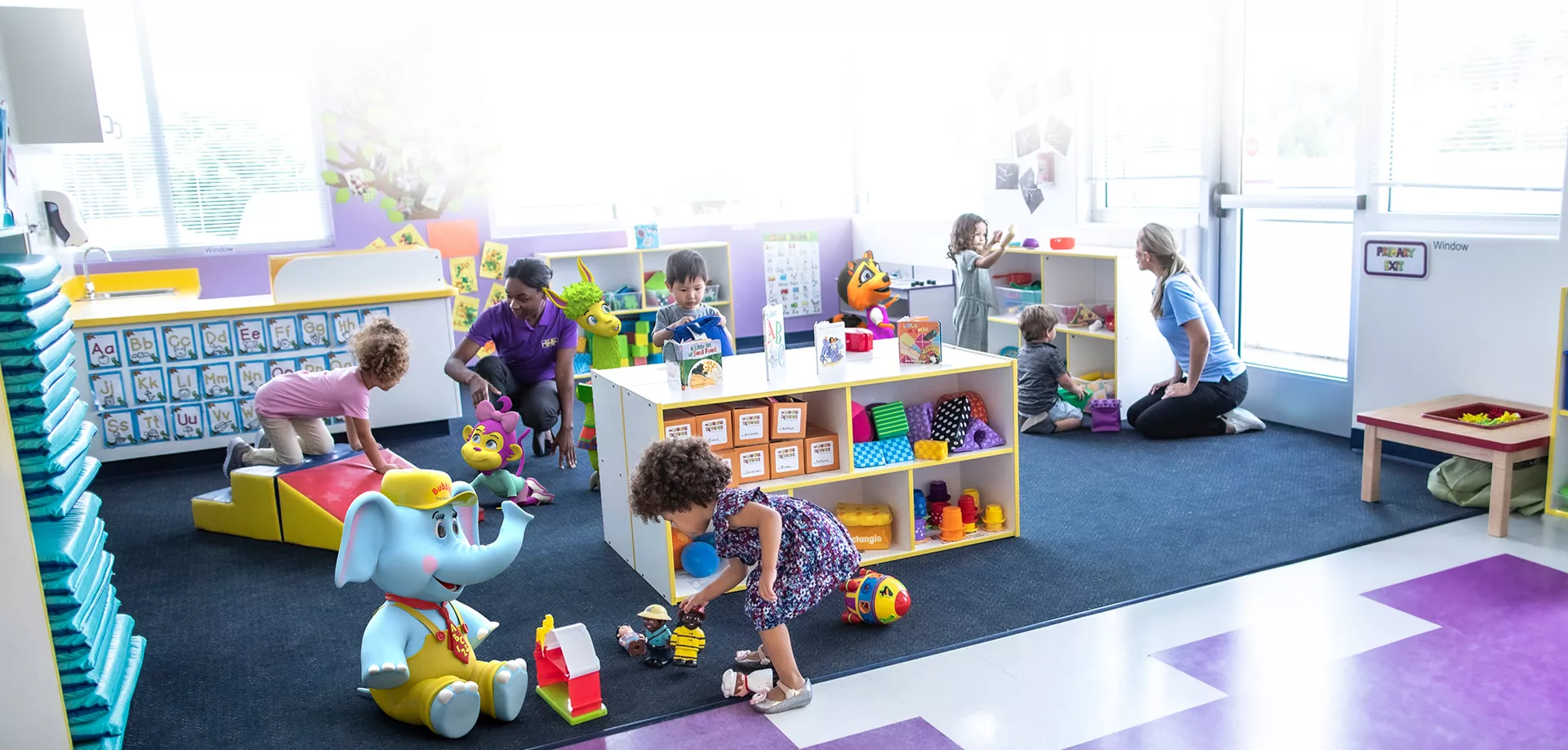
Many ways to stay connected
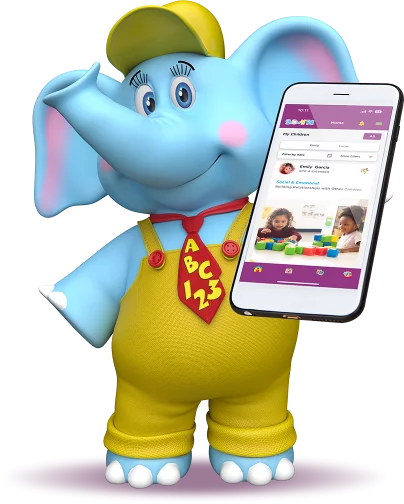
We offer an easy-to-use smartphone app and an array of ways to help you stay connected.

Monthly newsletters and invitations to our community events

Monthly calendars

Everyday photos of your little learner

Blog to help you stay with the current trends

Notifications of your child’s learning activities

Social media
Welcome to Happyville – Bubbles and Friends are so excited to meet you! Our award-winning
video series provides
fun and educational content to young children!
Each episode allows children to explore language and literacy, critical thinking, mathematical concepts, and social emotional wellness through the power of story and music.